Shared Drive and Shared Folder
A shared space is a collaboration area used by multiple users. The user who created the shared folder (owner) directly sets the members and permissions, and the members manage files together within the granted permissions.
1. Sharing Structure
The shared folder can be opened from the [Shared Folder] in the left menu. The list of shared folders only displays the shared folders where I am registered as an owner or member.
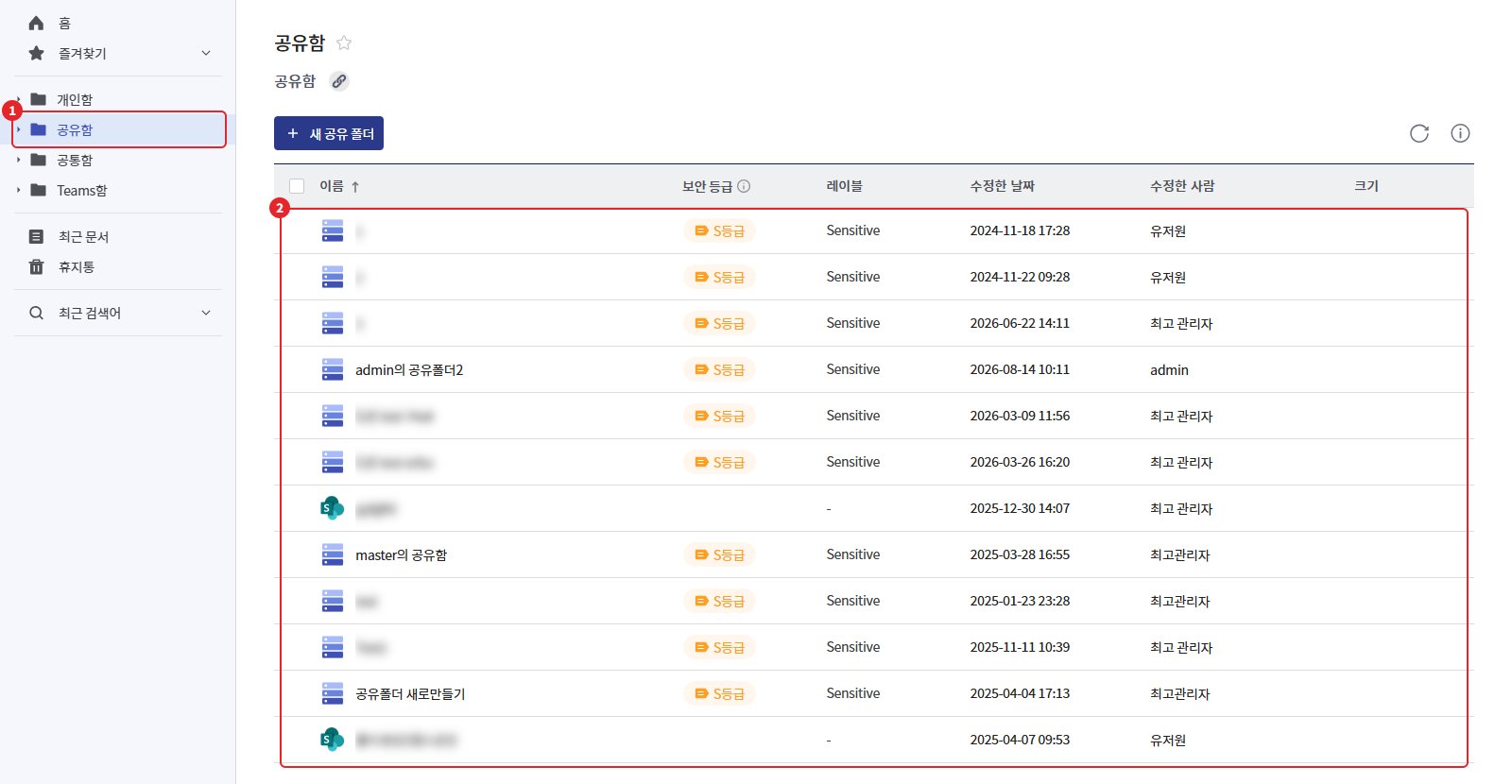
| division | Explanation |
|---|---|
| Shared Storage | Storage registered for sharing purposes by the administrator. The actual location where the shared folder is stored. |
| Shared Folder | The top-level folder of the shared folder list. Each folder can have its own members and permissions set. |
| Access Permissions (Roles) | A set of members who can access the shared folder and their permissions. Multiple entries can be registered for a single shared folder. |
Note - The permissions for creating shared storage and shared folders are set by the administrator in the Admin Console > Storage Management. If the shared storage menu is not visible or if the [New Shared Folder] button is not available, please contact your administrator.
2. Owner and Members
When you create a shared folder, two access permissions are automatically generated.
| role | Members during automatic generation | What you can do |
|---|---|---|
| owner | User who created the shared folder | Edit, delete shared folder name and description, register, edit, delete access permissions, add, delete members, invite external users |
| member | None (added by owner) | File operations within the permissions allowed for the role |
- In the access rights list, the owner role is distinguished by the owner icon next to the name.
- If you add another user to the owner role, that user will also become an owner and can manage the shared folder.
- The owner role cannot be deleted, and all members cannot be removed. At least one must remain.
- You can create additional roles as needed beyond member roles and distribute permissions among members.
2-1. Permission Scope
Permissions cannot exceed the scope allowed at the higher level.
| step | Person who determines permissions | Configurable Range |
|---|---|---|
| Shared Storage Role | Administrator | Total Upper Limit |
| Owner Role | Varies by administrator settings (refer to shared folder access permission settings 3-3) | Allowed items in the storage role |
| Member Roles · Additional Roles | owner | Within the allowed items in the owner role |
3. Creating a Shared Folder
Only users registered with the shared storage role by the administrator can create shared folders.
- Open the [Shared Box] in the left menu.
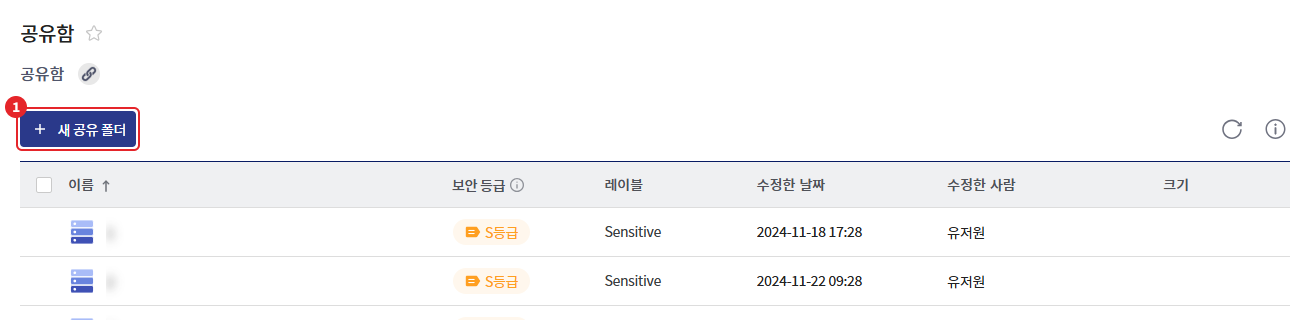
- Click on [New Shared Folder] at the top of the list.
- Enter items in the input field.
- Click on [Create].
- When the folder is created, the access permission management window opens automatically. Set the members and permissions. (Refer to shared folder access permission settings)
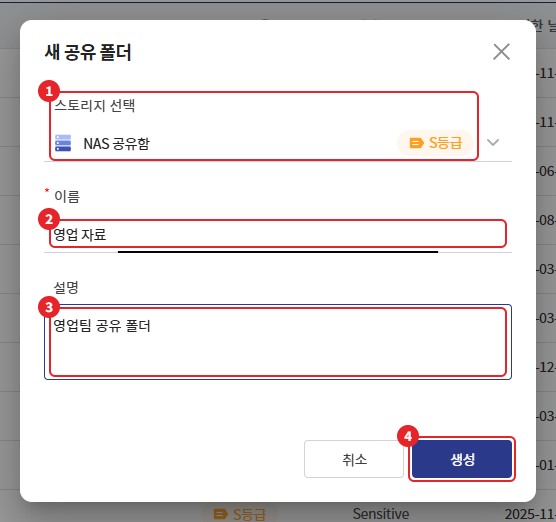
| item | Essential | Explanation |
|---|---|---|
| Storage Selection | Essential | Shared storage to save folders. The first storage in the list is selected by default. When the security level feature is used, the storage grade is displayed. |
| name | Essential | Up to 255 characters. Duplicate names are not allowed. Special characters / * \ < > ? : " | are not allowed. The last character cannot be '.'. |
| Explanation | Selection | Up to 200 characters |
4. Modify/Delete Shared Folder
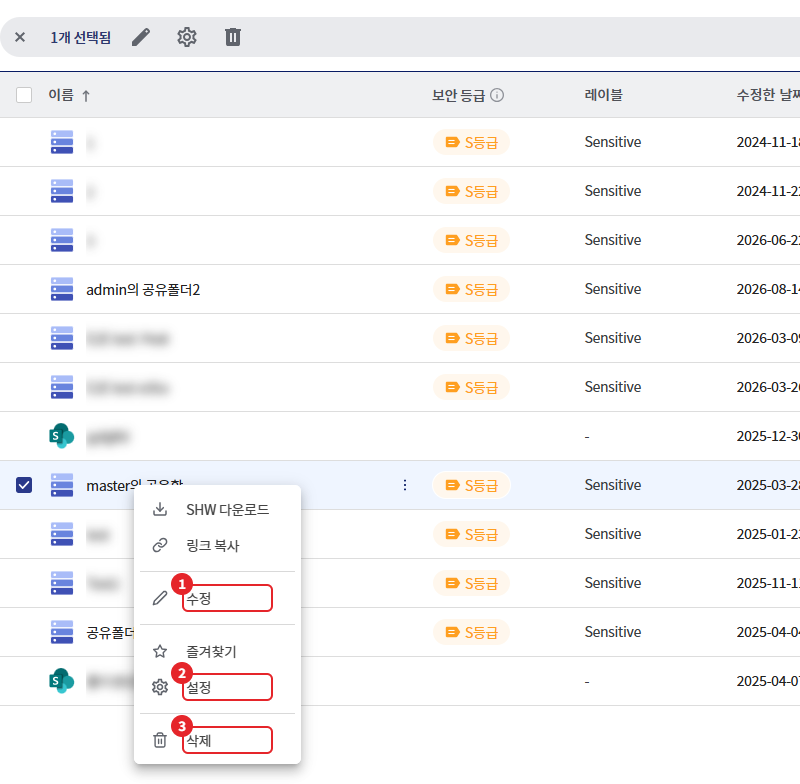
Right-click on the shared folder in the shared items list or select it, then use the icons in the top menu bar. The menu below is only displayed to the owner.
| Menu | Action |
|---|---|
| [Correction] | Change shared folder name and description. Click [Apply] after making changes. |
| [Settings] | Open Access Control Management Window |
| [Delete] | Delete Shared Folder. The owner role must have delete permissions to be displayed. |
If you delete, a confirmation window will appear saying "The selected item will be moved to the user's recycle bin." Clicking [Delete] will move the shared folder to the recycle bin.
Caution - If you delete the shared folder, all members will no longer have access to that folder. Please inform the members before deletion.
In addition, the right-click menu of the shared folder displays [Copy Link] and [Favorites], and this menu is also displayed to members. If the administrator has enabled the use of SHIELD Drive Works, [SHW Download] will also be displayed. [SHW Download] is the menu for downloading SHW files to use the shared folder as a SHIELD Drive Works work folder.